Why Businesses Connect Alchemer With Tableau
Here are a few ways teams put this automation to work:
- Monitor feedback trends: Visualize things like customer satisfaction or NPS data across time, locations, or customer segments.
- Combine survey results with operational data: Blend survey responses with CRM, sales, or support data already in Tableau to uncover what’s driving performance.
- Automate reporting: Keep dashboards up to date with the latest survey results automatically—no manual refreshes needed.
What Our Customers Say
" The platform combines a wide range of features with simple navigation, making frequent use practical without feeling overwhelming...integrations with our other tools work smoothly, so the feedback we collect becomes part of our broader workflow rather than a separate silo.”
Security Software Engineer, Tech Industry
How To Set Up the Alchemer + Tableau Integration
Setting this up yourself is pretty quick — and once it’s done, the data flows automatically:
-
Step 1:
Set up your survey connection: In Alchemer, open your survey and go to Integrations > Tableau Data Connector. -
Step 2:
Connect in Tableau: In Tableau Desktop or Tableau Cloud, select Web Data Connector and paste in your Alchemer URL. fields -
Step 3:
Visualize and refresh: Once connected, Tableau will pull in your survey data for immediate analysis—and can refresh automatically as new responses come in. -
Step 4:
(optional) After data is sent, Alchemer can react to the result as prompted—for example, triggering follow-up logic based on certain rules. View setup documentation →
Resources
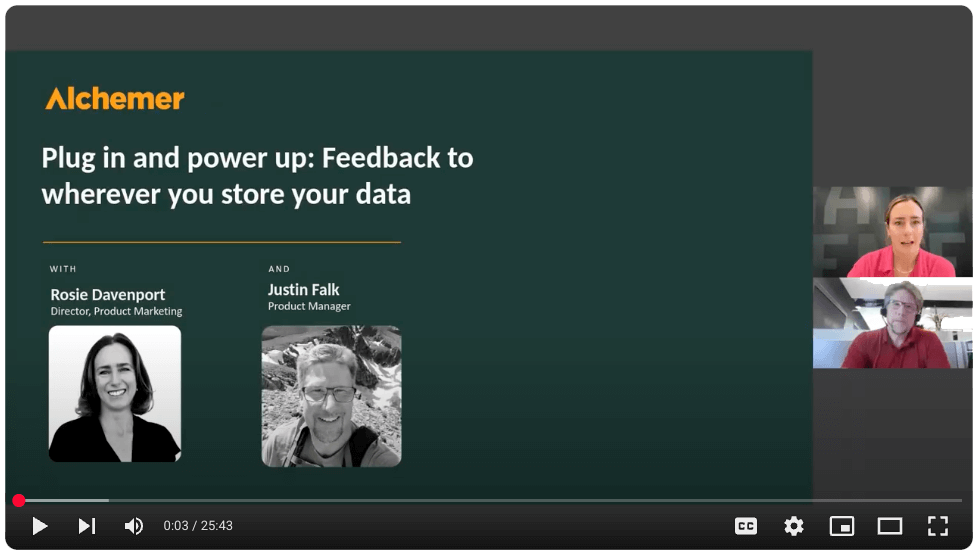

Want to see Tableau + Alchemer in action?
Talk with our team about how to connect customer feedback with your specific needs to drive action.